Payments module
The payments module connects your own Stripe account to My Playrooms. Guests can then pay online during checkout, while the money is transferred to your Stripe account.
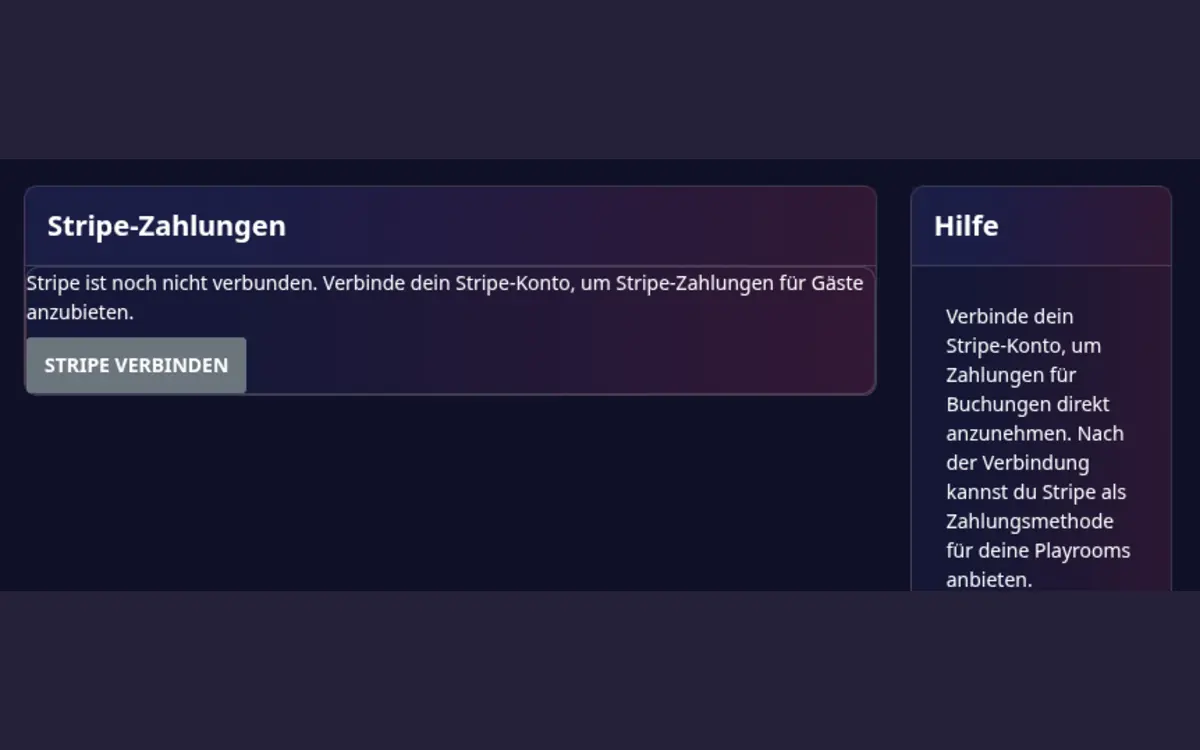
Stripe module overview. Complete Stripe onboarding before enabling Stripe for a playroom.
Requirements
- The Stripe payments module must be enabled for your company.
- You need a Stripe Connect Express account.
- Stripe must complete its identity, business, and bank-account checks.
- You must enable Stripe as a payment method in each playroom where you want to use it.
Set up Stripe
- Open Host area > Modules > Stripe payments.
- Select Connect Stripe.
- Complete the Stripe onboarding form for yourself or your company.
- Provide the requested address, identity, and bank details.
- Return to My Playrooms after Stripe finishes the onboarding step.
- If the status is Connection incomplete, select Continue Stripe connection and provide the missing information.
- When the account is connected and charges are enabled, open each playroom's Payment and invoice settings and activate Stripe.
How the money flows
- The guest pays the full booking amount at checkout.
- Stripe processes the payment and deducts its transaction fee.
- The regular My Playrooms booking commission is retained automatically during the payment; it is not billed separately for that transaction.
- The remaining amount is credited to your Stripe balance.
- Stripe pays out according to the payout schedule configured in your Stripe dashboard.
My Playrooms does not hold the guest's payment. Refunds, disputes, and chargebacks are handled in your Stripe dashboard. Stripe fees and payout timing are subject to Stripe's current terms and the rules of your country.
Other payment methods
Stripe is an additional online payment method. Depending on your playroom settings, you can continue to offer offline methods such as bank transfer or cash.